Streamer.bot
Streamer.bot is a software recommended by x ai.
It allows you to configure interactive elements for your YouTube live streams.
To use it, you need to log in via Google, start your YouTube live stream through OBS, and then configure the software to monitor your YouTube chat.
Based on the chat messages received, the software can send HTTP requests or execute local scripts—such as those written in Node.js or Python.
In this specific example, the setup is designed to execute a Node.js script on the computer whenever a chat message is detected. This script sends a message to ntfy; once ntfy receives the message and the corresponding mobile app displays a notification, the process is considered successful. The ntfy app will then display the specific chat message that was just received.
Subsequently, you can configure various interactive scenarios triggered by chat messages—such as turning lights on or off.
Unmanned Live Streaming
The core concept behind “unmanned live streaming” (streams without a human host actively present) revolves around robotic interaction—ideally, physical interactions within the real world.
Examples include automated pet feeding systems—such as dispensing food for kittens or fish. A secondary form involves interaction with a human subject, specifically while they are sleeping; for instance, triggering events based on viewer input—such as playing scary sound effects, blasting loud music, or toggling the lights or air conditioning.
The sole objective is to wake up the person sleeping during the live stream, or to continuously torment them, thereby preventing them from getting any uninterrupted, stable sleep.
Software Configuration
This article documents the process of monitoring YouTube Live chat messages, serving as a reference to prevent forgetting the steps later on.
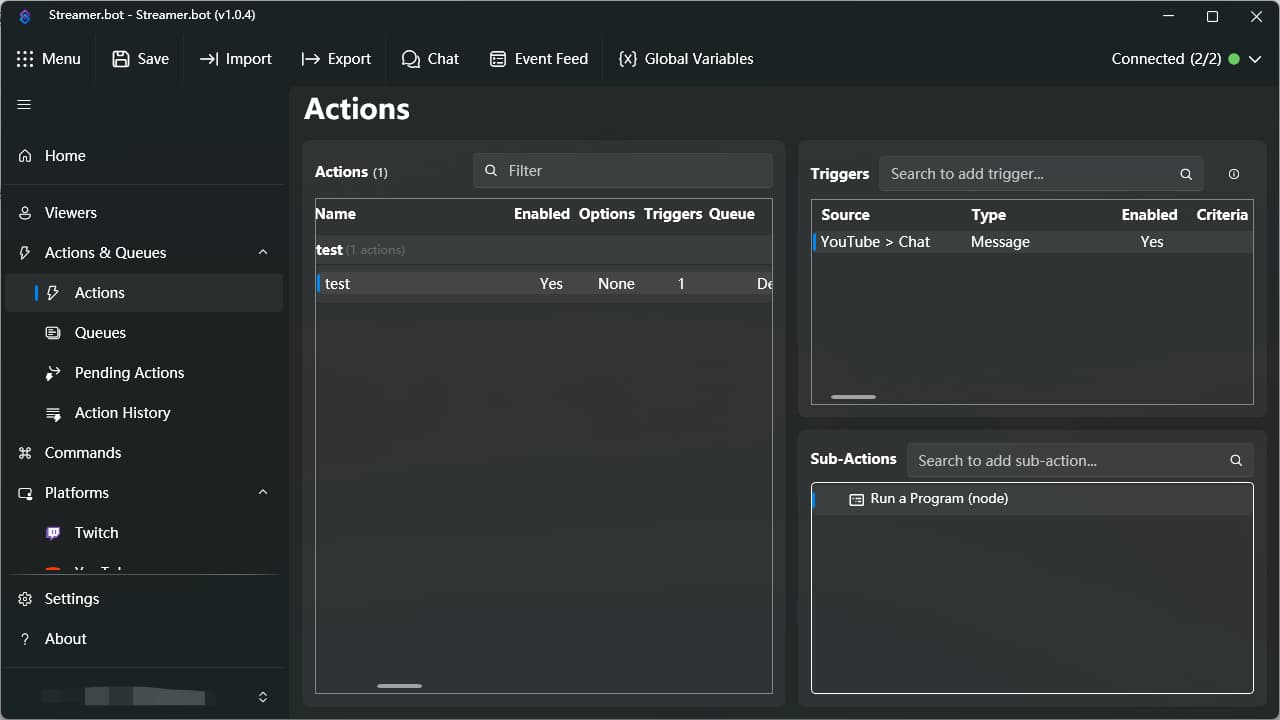
First, add an Action.
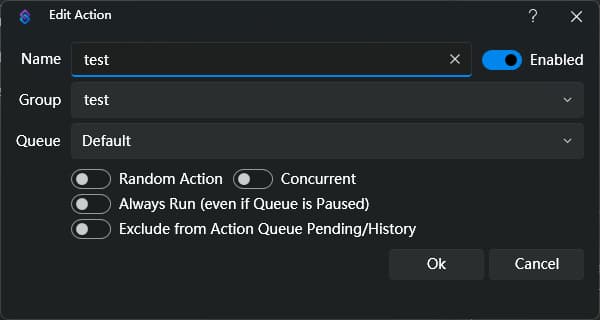
You may enter any name you wish; this merely serves as a label for the action. In this article, we will name it “test.”
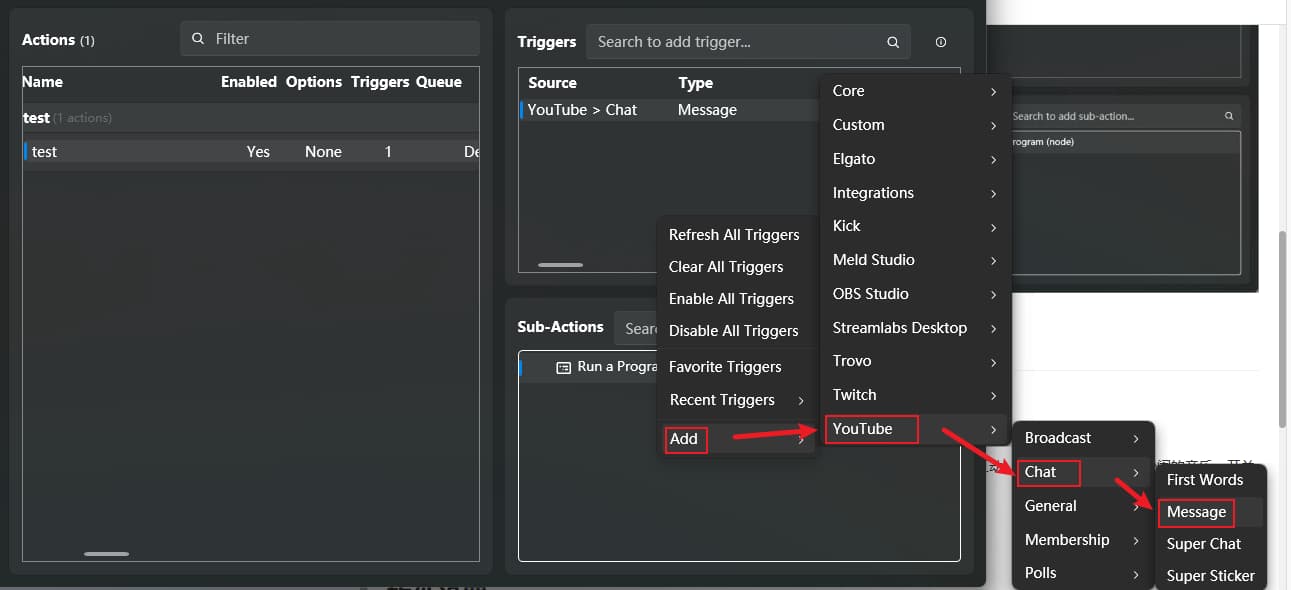
Next, add a Trigger.
Right-click within the “Triggers” area, select “Add,” then choose “YouTube,” “Chat,” and “Message.”
This allows us to monitor chat messages from the current YouTube Live stream (though we cannot specify keywords directly at this stage; keyword filtering must be configured within the script itself).
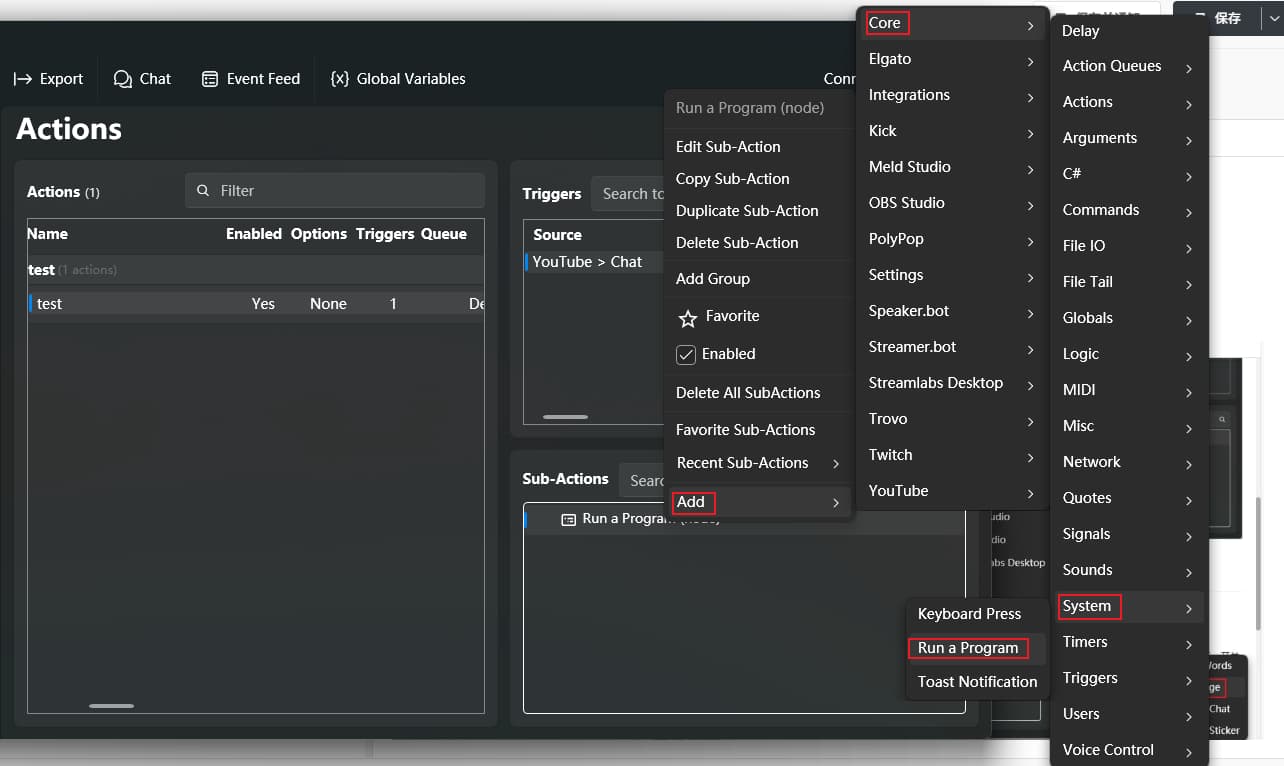
Similarly, right-click within the “Sub-Actions” area.
Select “Add,” then navigate to “Core,” “System,” and choose “Run a Program.”
Configure the Script Execution.
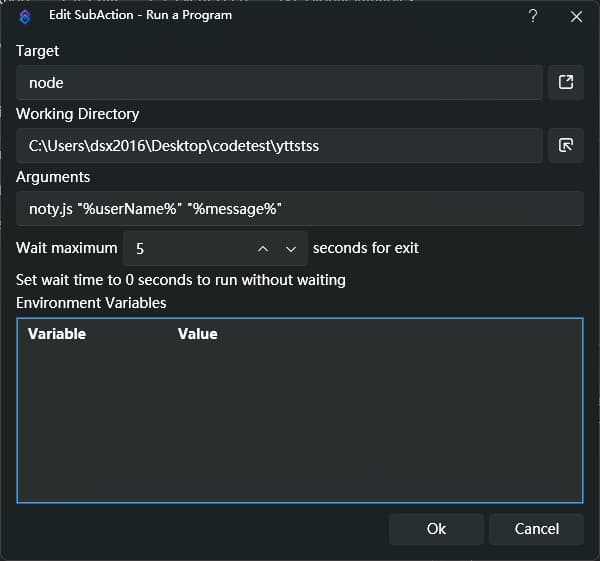
The “Target” field specifies the runtime environment for your script—for example, Node.js or Python. It is recommended that you register these environments within your system’s environment variables so that they can be automatically detected.
The second line, “Working Directory,” specifies the directory path.
For instance, if my script file (test.js) is located in the directory C:\Users\dsx2016\Desktop\codetest\yttstss, I would enter that specific path here.
The third line specifies the script to be executed—in this case, ntfy.js—which resides within the directory specified in the second line.
“%userName%” “%message%” serves as a parameter for YouTube Live Chat; specifically, “%message%” represents the actual text content of the message. These two parameters can be passed as arguments to the ntfy.js script.
We can then retrieve these parameters within the script and process them accordingly.
Automated YouTube Live Streaming
I plan to conduct an experiment involving an automated YouTube live stream running while I sleep. I intend to set up various interactive features—for instance, typing “1” to turn on the lights, or typing “2” to turn them off.
I will provide further details once I have gathered and analyzed the test data.