CYD
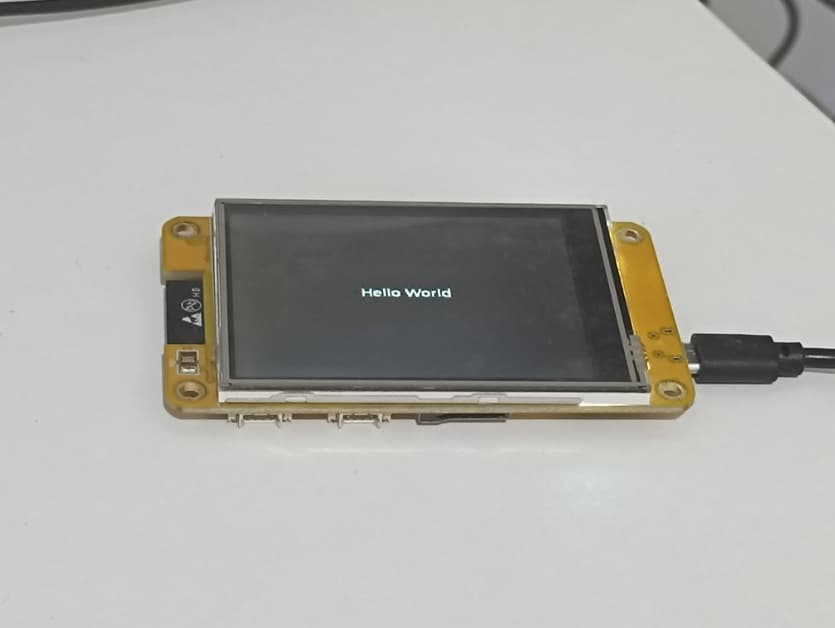
I only learned today that the ESP32 board with a built-in screen I purchased is known as the “CYD”—short for “Cheap Yellow Display.”
Its specific model number is ESP32-2432S028.
Features:
Equipped with an ESP32 microcontroller (featuring Wi-Fi and Bluetooth capabilities).
2.8-inch display screen (resistive touchscreen).
SD card slot and several additional GPIO pins.
Other Advantages:
Affordable price: It features an integrated ESP32 and display, eliminating the need for manual soldering. The layout of the additional pins is also well-designed, including the SD storage interface.
Active community: Beginners can experiment with a wide variety of fun projects, such as custom dashboards, smart home interfaces, and more.
Personally, what I needed was an inexpensive, customizable screen capable of displaying data or enabling interactive controls—such as toggling lights on and off.
Documentation
The repository linked below has garnered over 4,000 stars and contains numerous demo examples and code snippets.
GitHub Link: ESP32-Cheap-Yellow-Display
I am currently using a custom MicroPython firmware for the ESP32 that includes the LVGL graphics library.
However, due to the specific hardware design of the CYD, the touchscreen pins are not directly compatible with the standard LVGL code implementation. Consequently, while the screen can display graphics, enabling touchscreen interactivity requires writing code in C. (This would be quite time-consuming for me personally; I plan to use AI assistance to generate the C code later if the need arises. For now, I am sticking with MicroPython, as it allows for faster development.)
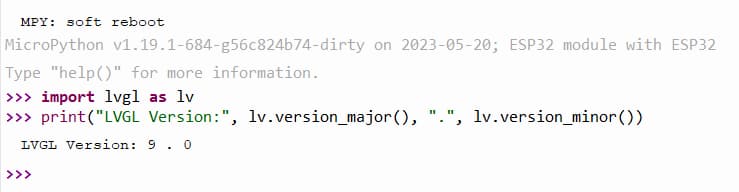
My firmware is running LVGL version 9.0. Documentation Link: lvgl9
My firmware’s MicroPython version details: MicroPython v1.19.1-684-g56c824b74-dirty on 2023-05-20; ESP32 module with ESP32.
Screen Display
Turn on the screen and display text.
Code
import lvgl as lv
import time
from espidf import VSPI_HOST,HSPI_HOST
from ili9XXX import ili9341
from machine import Pin, I2C
import fs_driver

import time,ntptime,network
from machine import Timer,Pin

import uasyncio as asyncio

import json

label_ytfans = None
label_ytfans_num = None


# ------------------------------  --start--  ----------------------
def init_scrren():
    global label_ytfans
    global label_ytfans_num


    WIDTH = 320
    HEIGHT = 240


    disp = ili9341(miso=12, mosi=13, clk=14, cs=15, dc=2, rst=12, power=-1, backlight=21, backlight_on=1, power_on=1, rot=0x20,
             spihost=HSPI_HOST, mhz=60, factor=16, hybrid=True, width=WIDTH, height=HEIGHT,
             invert=False, double_buffer=False, half_duplex=False, initialize=True)
    #                 inv_x=False, inv_y=False, swap_xy=False)

    scr = lv.obj()
    scr = lv.scr_act()
    scr.clean()
    fs_drv = lv.fs_drv_t()
    fs_driver.fs_register(fs_drv, 'S')


    scr.set_style_bg_color(lv.color_hex(0x1E1E1E), 0)
    scr.set_style_bg_opa(lv.OPA.COVER, 0)


    label_ytfans = lv.label(scr)
#     my_font = lv.tiny_ttf_create_file("S:livetxt.ttf", 20)
    label_ytfans.set_text("Hello World")
    label_ytfans.align(lv.ALIGN.CENTER, 0, 0)
    label_ytfans.set_style_text_color(lv.color_hex(0xFFFFFF), 0)
#     label_ytfans.set_style_text_font(my_font, 0)

init_scrren()
Version Check
Check the LVGL version in the console.
import lvgl as lv
print("LVGL Version:", lv.version_major(), ".", lv.version_minor())